
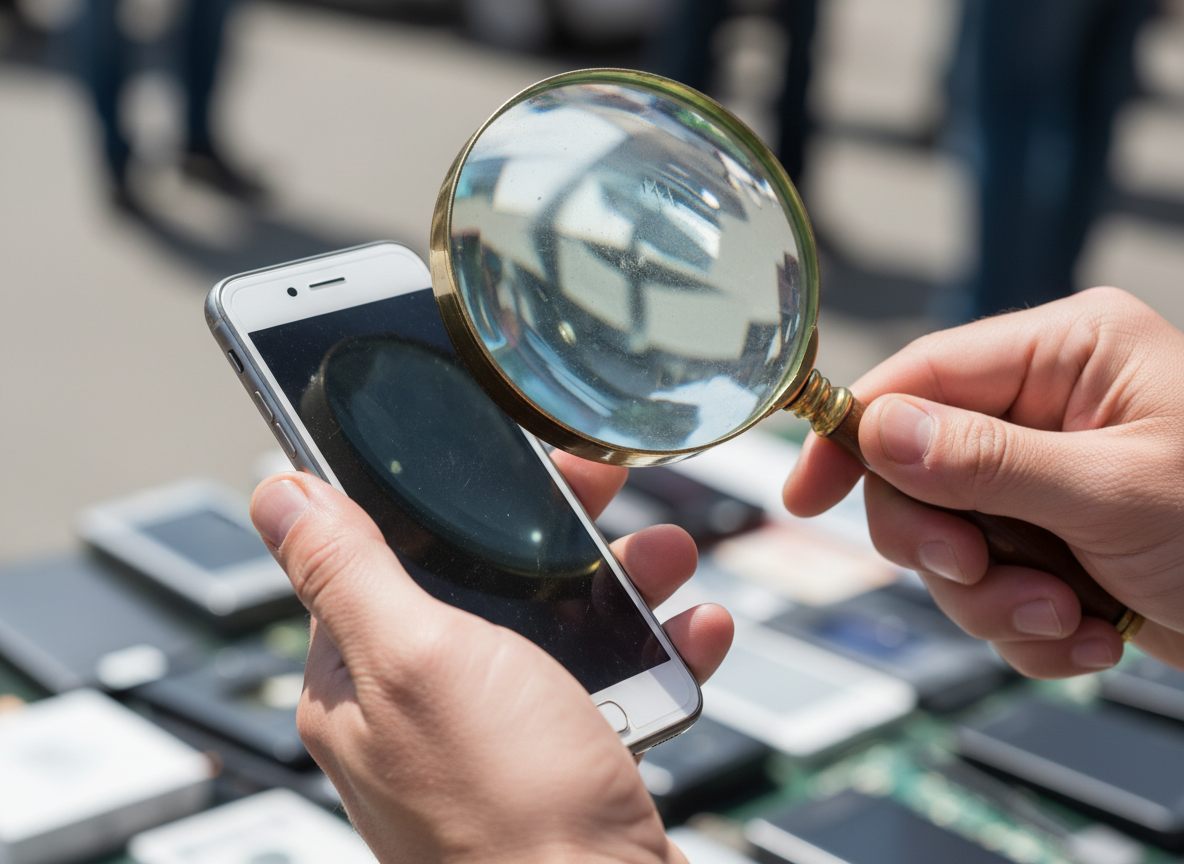
Buying a used phone can save you hundreds of euros. But it can also cost you if you don't know what to check. Whether you're buying an iPhone, Samsung, iPad, or laptop from Facebook Marketplace, a friend, or a shop in Malta — follow this checklist. And if you're not confident doing it yourself, we offer a professional pre-purchase inspection at our shop in Ta' Xbiex.
1. Check the IMEI Number
The IMEI is your device's unique identifier. Dial *#06# on any phone to see it. Then check it on imei.info or Apple's checker (for iPhones). This tells you if the phone is reported stolen, blacklisted, or still under a carrier contract. Never buy a phone with a blocked IMEI — it won't work on any network.
2. Verify It's Not iCloud/Google Locked
For iPhones/iPads: Make sure the previous owner has signed out of iCloud and turned off Find My iPhone. If Activation Lock is still on, the device is essentially a paperweight. Ask the seller to reset the device in front of you.
For Android: Check that Factory Reset Protection (FRP) is disabled. After a factory reset, the phone should not ask for the previous owner's Google account.
3. Inspect the Screen
Open a pure white image and a pure black image. Look for:
- Dead pixels — tiny dots that don't change colour
- Burn-in — ghost images from the navigation bar or keyboard (common on OLED)
- Touch dead zones — open a drawing app and draw across the entire screen
- Uneven brightness — light bleed around edges on white backgrounds
4. Test the Battery Health
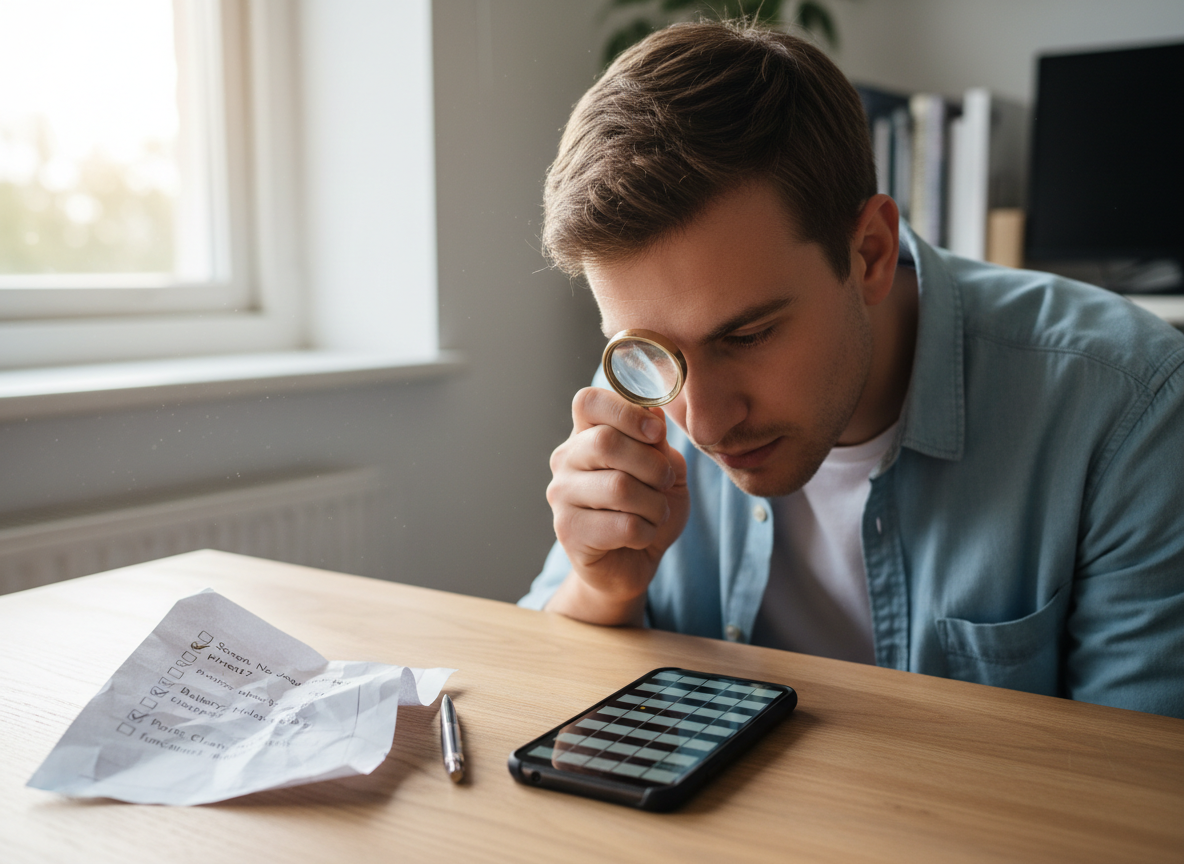
On iPhones, go to Settings → Battery → Battery Health. Anything above 85% is good. Below 80% means you'll need a replacement soon. On Samsung, use the Samsung Members app diagnostics. For other Android phones, install AccuBattery and check estimated capacity vs design capacity.
5. Check All Buttons and Ports
Test everything physically:
- Volume up and down buttons
- Power/side button
- Silent/mute switch (iPhone)
- Charging port — plug in a cable and check it's firm, not loose
- Speakers — play music and test both speakers
- Microphone — record a voice memo
6. Test the Cameras
Open the camera app and test all lenses — main, ultrawide, telephoto, and front camera. Take photos in good light and low light. Record a short video. Check for focus issues, blurry spots, or a rattling noise when you shake the phone gently.
7. Look for Water Damage
On iPhones, check the SIM tray slot — there's a small liquid contact indicator (LCI). If it's red, the phone has been exposed to water. In Malta, this is especially important — many used phones have been exposed to pool water, sea spray, or humidity damage that doesn't show up immediately but worsens over time.
8. Check for Refurbished Parts
On iPhones running iOS 15.2+, go to Settings → General → About. If any parts have been replaced (screen, battery, camera), it will show here. Replaced parts aren't necessarily bad — but they should be reflected in the price.

Not Sure? Let Us Check It for You
If you're about to spend €300-1,000+ on a used device and want peace of mind, bring it to CLINICA®IPHONE Malta before you pay. We offer a quick pre-purchase inspection — our certified technicians check the battery health, screen quality, internal components, water damage indicators, and overall device condition.
The inspection takes about 15 minutes and could save you from an expensive mistake. We see dozens of "bargain" phones every month that turn out to have hidden water damage, aftermarket screens, or degraded batteries — issues the seller didn't disclose.
We also buy and sell devices ourselves — all professionally inspected, tested, and sold with warranty. If you want the safest way to buy used in Malta, buy directly from us. And if you already bought a device that needs repairs, we fix all brands with an international warranty valid across 120+ locations in Europe.
Buying a Used Device?
Bring it in for a quick pre-purchase inspection. 15 minutes could save you hundreds of euros.